
Do you have timeline stories on your website that need translation? Maybe it’s your company history, project milestones, or personal journey. These timeline formats are popular but are complicated to translate properly. That’s where AI-powered Translators make everything simple.
Why Translate Timeline Stories?
Regular content is easy to translate, you just change the words. But timeline stories are different because they tell a connected story. Each event links to the next one. The order matters, and so does how events relate to each other.
When you don’t translate timeline stories properly, your global audience will not be able to understand how your company grew or why your product developed the way it did.
Timeline translation is not an easy task, but you can use these two plugins to translate your timeline stories:
AutoPoly-AI Translation for Polylang and AI Translation for TranslatePress
These tools help keep your story clear and connected when translating to different languages.
Step-by-Step Guide to Translate WordPress Timeline
Via AutoPoly – AI Translation For Polylang
- First, make sure that you have installed and activated Polylang and AutoPoly – AI Translation For Polylang (Pro).
- Navigate to the pages section. Edit the page that you want to translate.
- Select the target translation language from the list of available languages provided by Polylang.
- A prompt will appear asking if you want to duplicate the original page content. Select “Yes”.

- Next, select the translation provider. Choose one according to your preferences.

- Once selected, a tab containing both the source text and translation text will appear.
- Click Translate. The translation process will begin, and wait for a few minutes.
- After the translation completes, click Update Content.
- All content of the website will be translated into a selected language in a single click, now, preview it, and make manual edits to adjust translations for better accuracy.
If you want to translate a specific part of the timeline story, then you can do it using the inline translation feature. Simply follow these steps:
- Select the content you want to translate; the translation button only becomes enabled after selecting the text.

- A prompt will appear; select the target language from the list of languages. The selected block’s content will be automatically translated into the target language using the Chrome built-in AI translator.
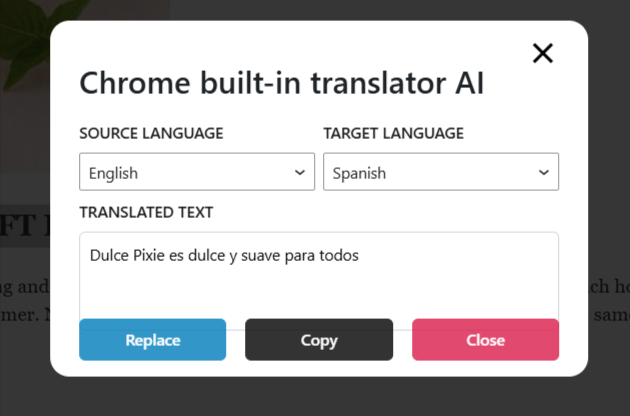
- Click Replace to overwrite the source text with the translated version, or copy the translated text manually and paste it where needed.
Via AI Translation For TranslatePress
- Open the page or post you want to translate.
- Click the “Translate Page” button displayed at the top. This will open the live translation editor.
- In the translation editor, select the language you want to translate the page into.
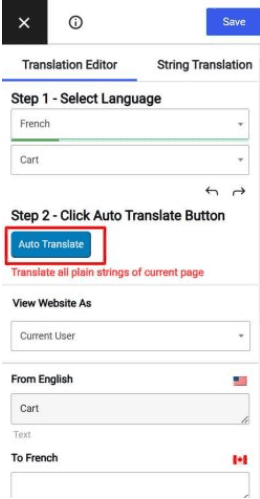
- After selecting the target language, the Auto Translate button will be enabled.
- Click the “Auto Translate” button.
- A pop-up will appear asking you to choose a translation provider. Select a Translation Provider from the available options.

- Choose the language to start the automatic translation process.
- After the translation completes, click the “Merge Translation” button.
- Review the translated content directly in the editor. You can manually edit or adjust content if needed.
- Click the “Save Translation” button to store the translated version of your page.
FAQs
Q: How long does it take to translate a timeline story?
With AI translation plugins, the process typically takes just a few minutes for automatic translation. However, you should allow additional time for manual review and adjustments to ensure accuracy and maintain the story’s flow.
Q: Do I need the Pro version of AutoPoly for timeline translation?
Yes, you need the Pro version of AutoPoly because it includes advanced AI translation capabilities needed for complex content like timelines.
Q: Can I translate only specific parts of my timeline with AutoPoly?
Yes, AutoPoly offers an inline translation feature that allows you to select and translate specific content blocks. This is useful when you only need to update certain timeline events or want to improve a particular section’s translation.
Q: Can I see how my translated timeline looks before publishing?
Yes, AI Translation for TranslatePress provides a live translation editor where you can review and edit translated content in real-time before saving the final version.
Q: What’s the difference between AutoPoly and TranslatePress for timeline translation?
AutoPoly works with Polylang and offers inline translation features, while TranslatePress provides a live translation editor. Both support AI translation, but the workflow and interface differ based on your preferred multilingual plugin.
Q: Can I translate timeline stories into multiple languages simultaneously?
While you need to select one target language at a time during the translation process, you can repeat the process for multiple languages.